
Usage and Access
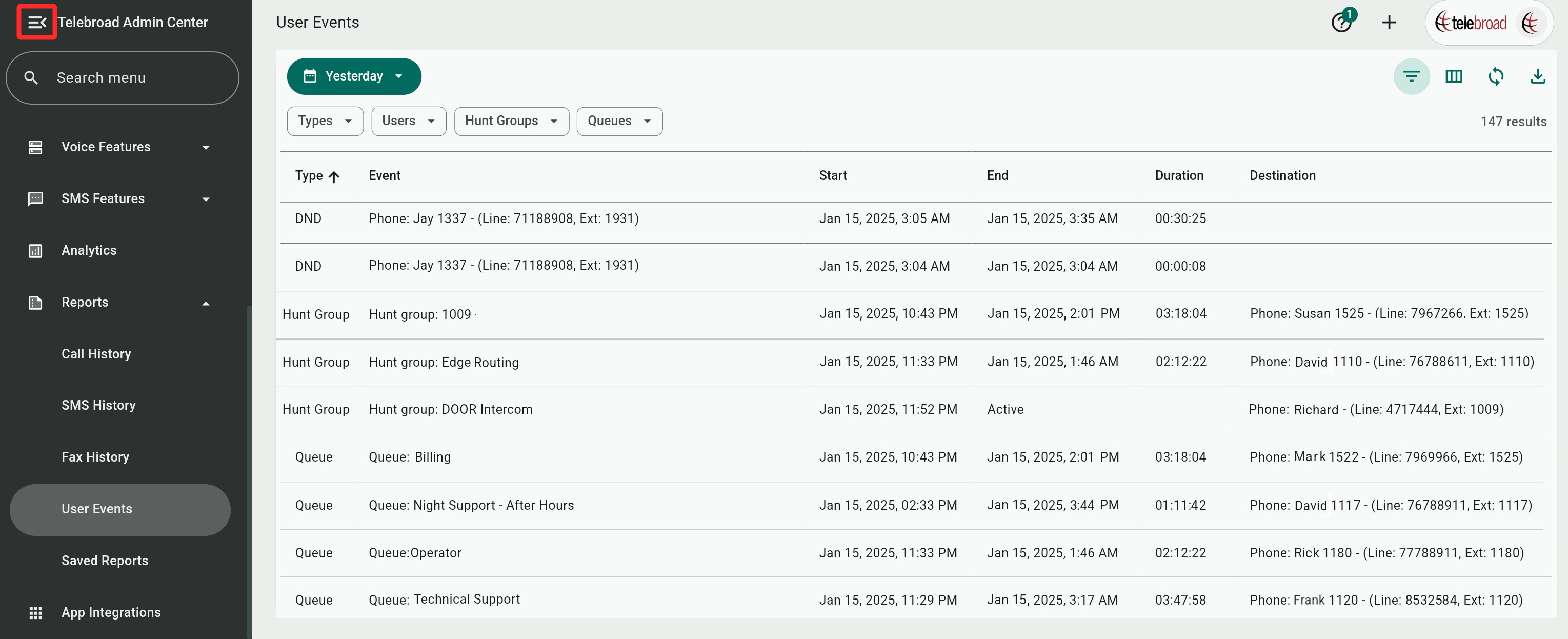
With the User Events report, you can view users' DND (Do Not Disturb) and group activity in a selected date range.
For DND, the report shows the time and date users activated and ended the feature on their phone lines.
For queues and hunt groups, the report shows the time and date when users logged in and out.
Access the report from the side navigaion menu under Reports>User Events. To access the page a user needs to be an Account Owner or have a role with User Events view permissions (roles are explained here).
Downloading Reports
Use the  button to download a CSV file of the report for your selected date range and filters. The file includes all columns, regardless of your column selection. It also has a User ID and a Context ID columns. The latter is an ID for the hunt group or queue.
Date Range
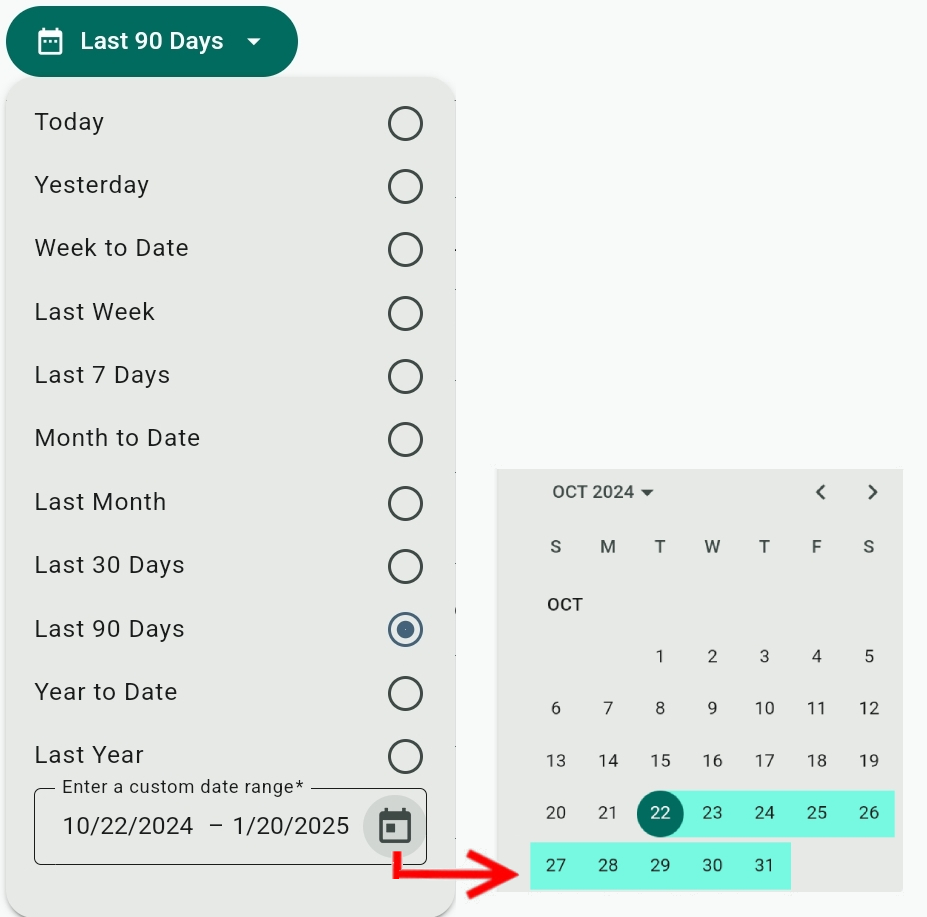
The Date range field offers predefined date choices – Today, Yesterday, Last Week, etc.
You can also use the Enter a custom date range field to select a date range of your choice. Click the date to enter the date manually with your keyboard or click  to set the start and end date from a calendar.
Display Columns and Sorting
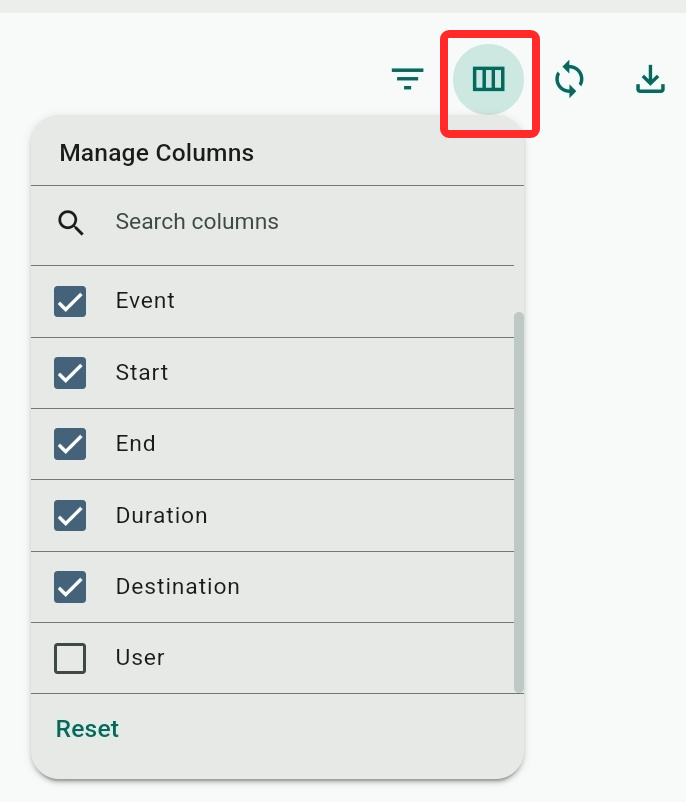
Events are displayed under the columns you check or uncheck in the Manage Columns menu.
- Type: The type of the event – DND, Hunt Group, or Queue.
- Event: The hunt group, queue, or user/phone line affected by the event.
- Start: The starting date and time of the event.
- End: The ending date and time of the event. This is Active if the event has not ended (the user has not yet turned off DND or logged out).
- Duration: The time between the start and end of the event. This will be blank if the event is still active.
- Destination: The phone line that was affected by the event. For DND events, this field is left blank, as the phone line/user is already listed under the Event column.
- User (hidden by default): The user and his extension that are affected by the event.
Sorting Columns
You can sort the report by clicking the Type, Start, End, Duration, or User columns (the Event and Destination columns are not sortable). Clicking once will sort by ascending order ( ) and clicking again will sort by descending order (
 ).
).
If the End column is sorted in ascending order, it will begin with Active events.

Applying Filters
You can use one or several filters to narrow down and refine the results shown in the report. The filter toolbar can be shown or hidden using the  button.
If the filter bar is hidden, the filter button will appear with a green dot ( ), when there are active filters applied, to remind you some report results are being filtered out.
Select  on the title of an active filter or Clear when opening the filter to clear your selections for it or remove all filters by selecting Clear all.
- Type: Select to include or exclude DND, Hunt Group, or Queue events in the report.
If none is selected (the default choice), all three event types will be included. - Users: Select which users will be included in the report. If none is selected, all users will be included.
- Hunt Groups: Select which hunt groups will be included in the report. If none is selected, all hunt groups will be included.
- Queues: Select which queues will be included in the report. If none is selected, all queues will be included.
Filtering Errors
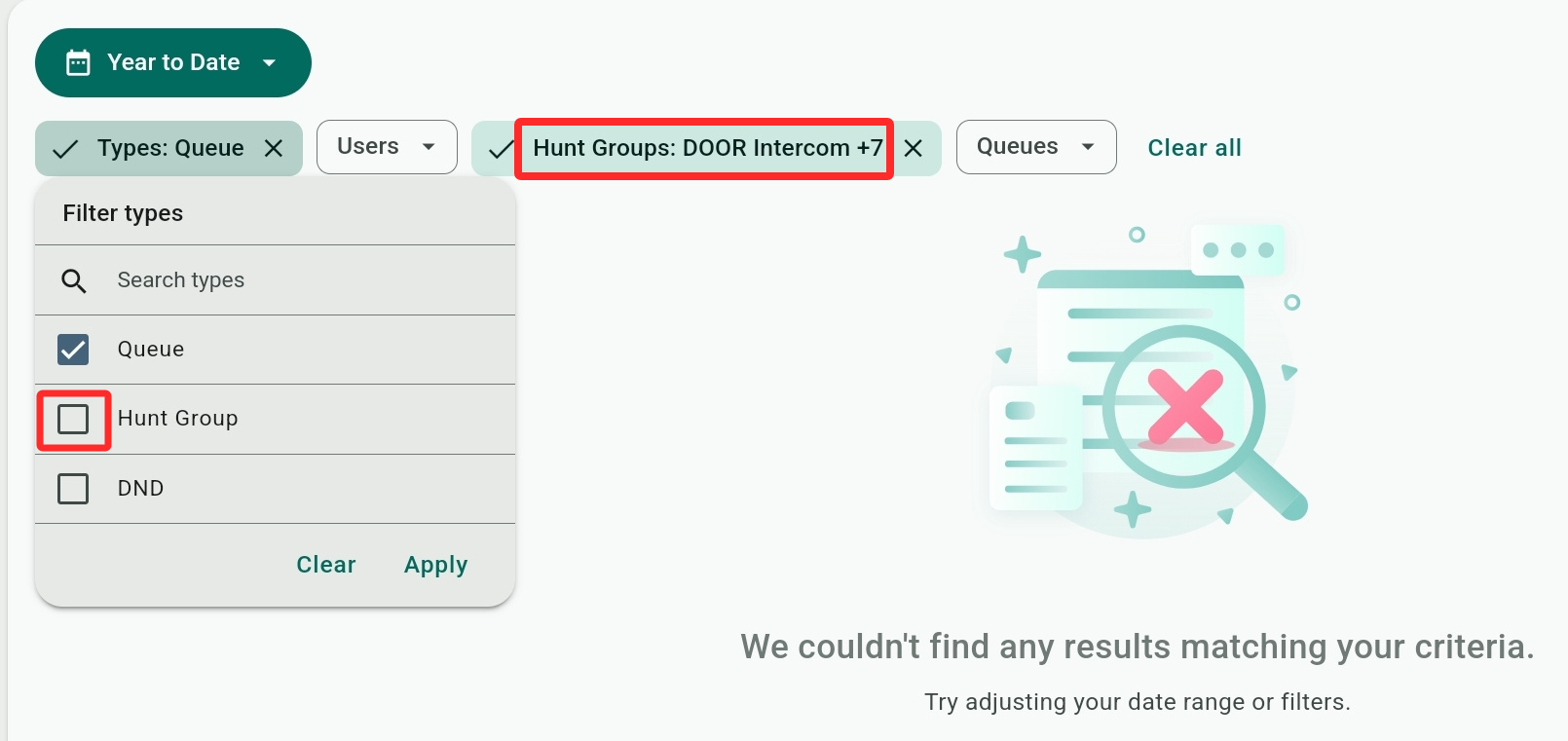
1) If you select to show some specific hunt groups or queues without including the relevant Type filter, no results will be displayed and you will get an error saying "We couldn't find any results matching your criteria".
Fix this by clearing the Type field (so all types are included) or check the hunt group or queue options for the Type filter.
2) No results will show if selected hunt groups or queues do not have any events for the selected date range.
Fix this by clearing the Hunt Groups or Queues filters so all possible group events are displayed. Now, select to filter hunt groups or queues from the displayed results.